
How to Redline a DWG File Online Free (No AutoCAD or Bluebeam)
Circle issues on sprinkler plans, alarm layouts, and shop drawings in Chrome — then download a marked PNG for email or an RFI log. No license, no plugin.
Free online tool
Markup CAD Drawing Online
Use the tool first, then follow the steps below for detail.
Recommended blogs
In this guide
If you search Reddit, X, or Upwork for "redline DWG," "mark up CAD drawing online," or "annotate DWG without AutoCAD," you get the same story: someone emailed a native DWG, the recipient does not own Bluebeam or AutoCAD, and the thread turns into a debate about PDF printouts and phone photos. That workflow is slow, loses layer context, and creates version confusion on fast-moving jobs.
CadPeek's markup tool is built for that gap. You upload a DWG or DXF, pan the sheet with the Hand tool, add arrows, boxes, and notes on top of live geometry, and export a marked screenshot PNG for email, Teams, or an RFI log. The original file is not modified — markups are a review layer stored in your browser for that filename.
This guide walks through the full redline workflow: opening the drawing, using each markup tool, exporting for subcontractors and AHJ reviewers, and when to use markup versus measure or share links.
Who needs browser DWG markup?
The common thread is asynchronous review: you are not rebuilding the model, you are communicating "check this" on an existing sheet. Google Trends and job boards consistently show rising interest in view-and-markup CAD workflows as teams move away from desktop-only tools — especially for field tablets and Chromebooks.
- Fire protection subs marking sprinkler head spacing questions before install week
- MEP coordinators circling clashes on combined ceiling plans without a full CAD seat
- GC supers sending a marked PNG to the engineer instead of a blurry site photo
- Freelancers on Upwork delivering a redlined screenshot with a short note list
- Inspectors or owners who received DWG but only need to point at one area
Markup vs measure vs share — pick the right tool
CadPeek separates three jobs that often get lumped together. Markup adds arrows, boxes, and text for issue callouts and exports a PNG — best for RFIs and email. Measure reads distance between two points on real geometry — best before you claim a spacing violation. Share creates a view-only link so someone else can pan, zoom, and toggle layers — best for live walkthroughs.
Start with markup when your deliverable is a marked screenshot or a short list of flagged areas. If you need the recipient to explore the whole model, send a share link instead of a static PNG.
Step 1 — Open the markup viewer
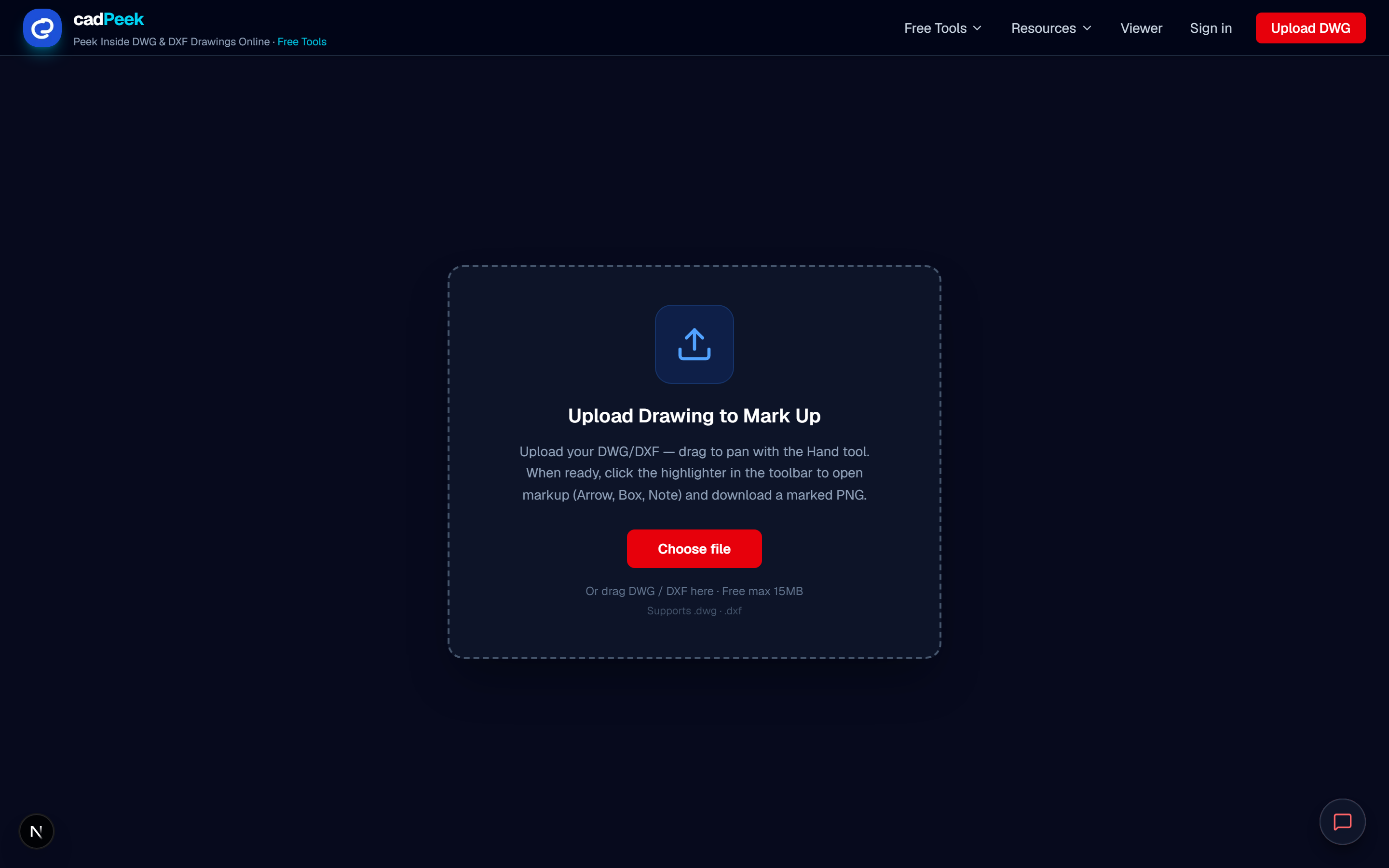
Go to CadPeek's Markup CAD Drawing Online tool page or open the viewer with the markup tool selected. You will see an upload prompt — drag a DWG or DXF onto the page or click Choose file. Free accounts can open drawings up to 15 MB in the browser; parsing runs locally on your device by default.
Wait for the progress bar to finish. Large fire protection or MEP plans can take 30 seconds to two minutes on first open while layers and blocks render. Do not worry if old markups do not appear during loading — they restore automatically once the sheet is fully open.
Step 2 — Pan and zoom before you mark
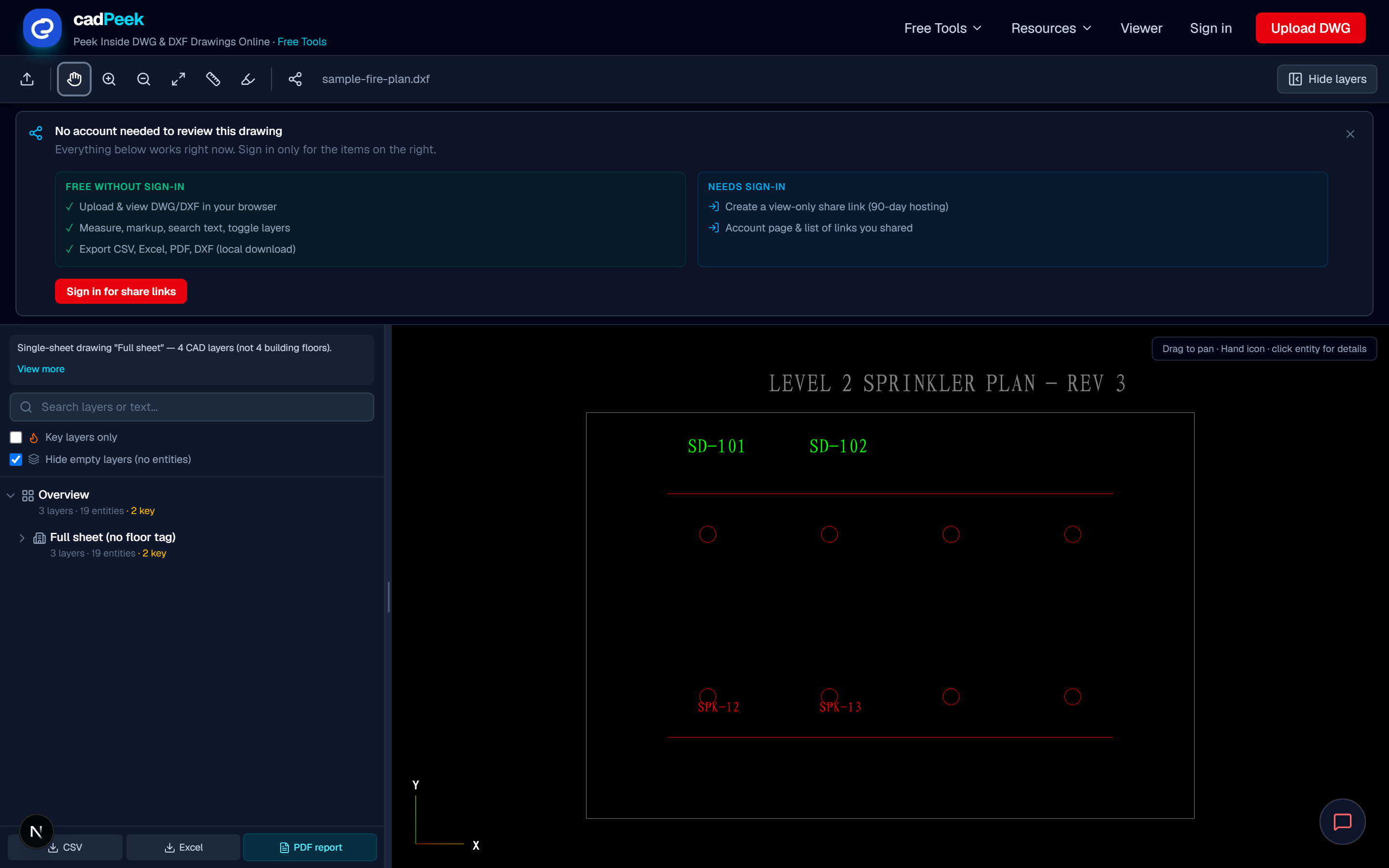
After the drawing opens, the toolbar appears at the top. The Hand tool is selected by default. Drag to pan, scroll the mouse wheel to zoom in on the area you need to review, and use Fit to window if you lose the sheet.
Take a moment to orient on layers in the left sidebar. Hiding empty layers or non-key disciplines makes dense sprinkler or alarm plans easier to read before you place your first arrow.
Step 3 — Open markup and use Arrow (default)
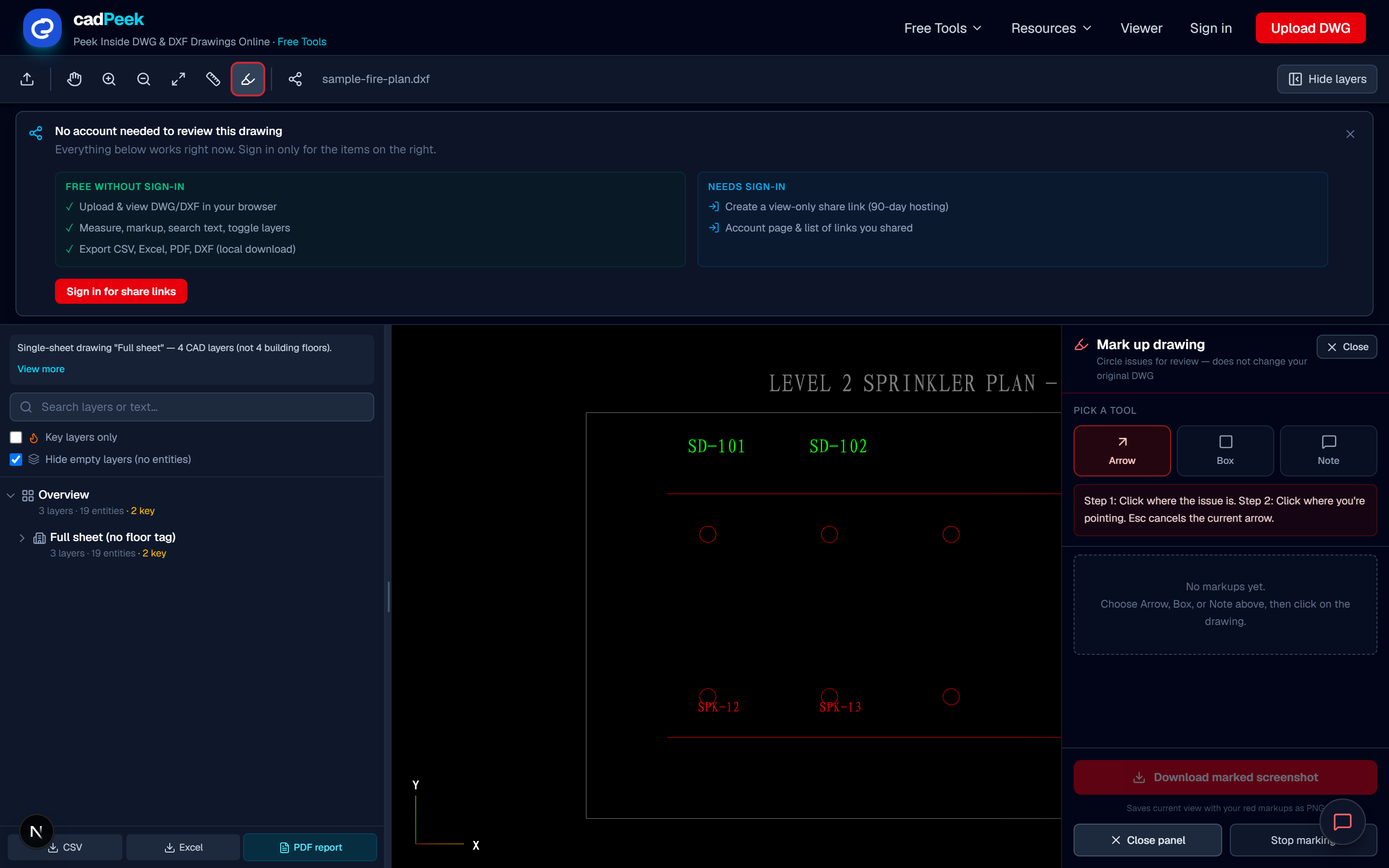
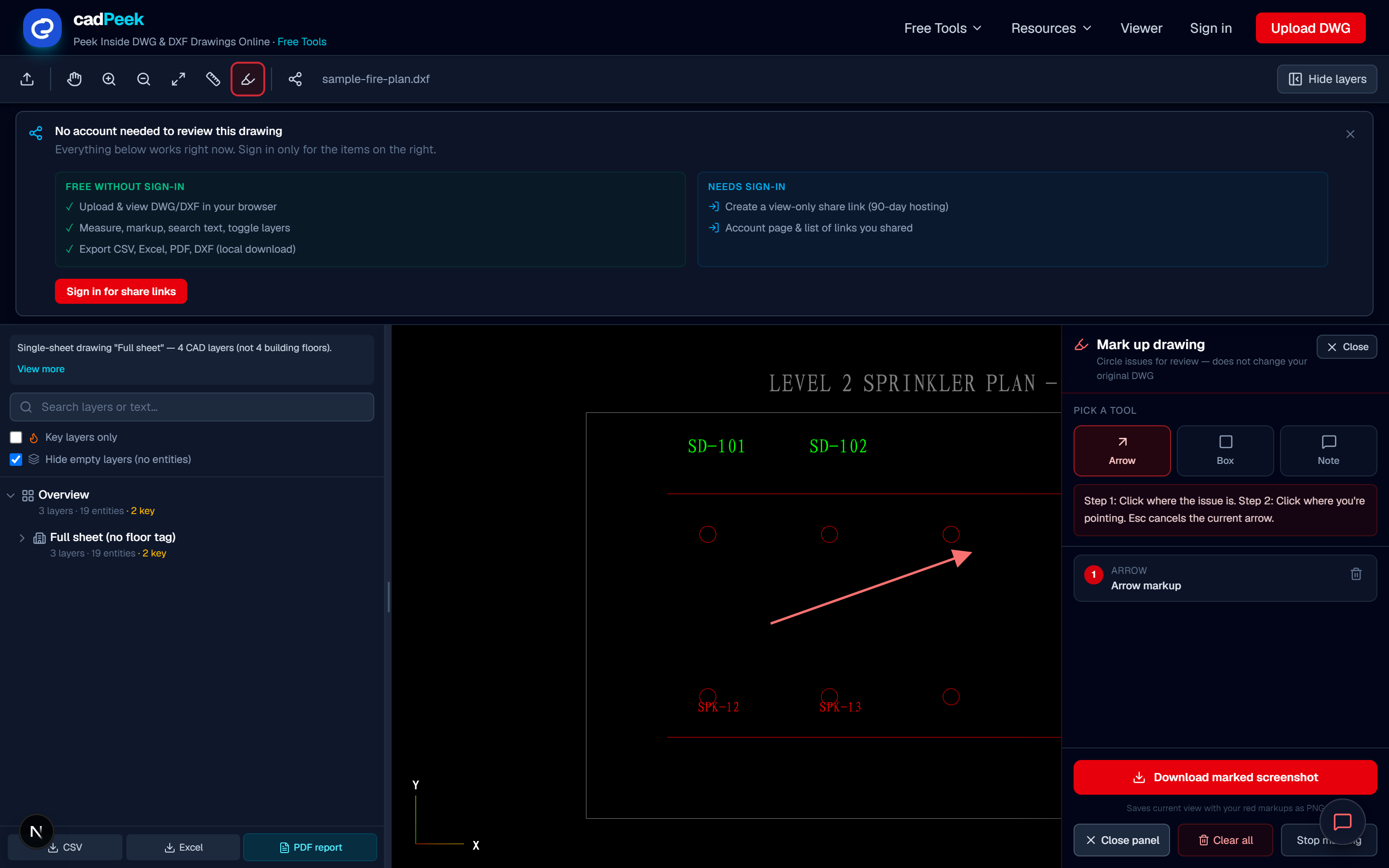
Click the highlighter icon in the toolbar to open the Mark up panel on the right. Arrow mode is selected automatically so you can start immediately. The cursor becomes a crosshair over the canvas.
For an arrow: click where the issue is (start point), then click where you want the arrow to point (end point). An optional note dialog lets you type a short label such as "Missing head" or "Verify elevation" — or click Skip note to leave the arrow unlabeled.
Arrows are ideal for device-level RFIs: one sprinkler head, one smoke detector, one pipe run that does not match spec.
Step 4 — Box and Note tools
Use a box when the issue is an area rather than a single symbol — for example a zone with missing coverage or congested ductwork. Use a note when you need words on the sheet without drawing a leader line.
Press Esc to cancel an arrow or box in progress. Click Hand in the toolbar to exit markup mode and close the panel while keeping your existing markups visible.
- Box — click one corner, then the opposite corner to highlight a room, shaft, or ceiling area
- Note — click once on the sheet, type your comment, and place a text callout on the plan
- Switch tools anytime from the panel; Hand closes the panel and returns to pan mode
Step 5 — Download a marked screenshot (PNG)
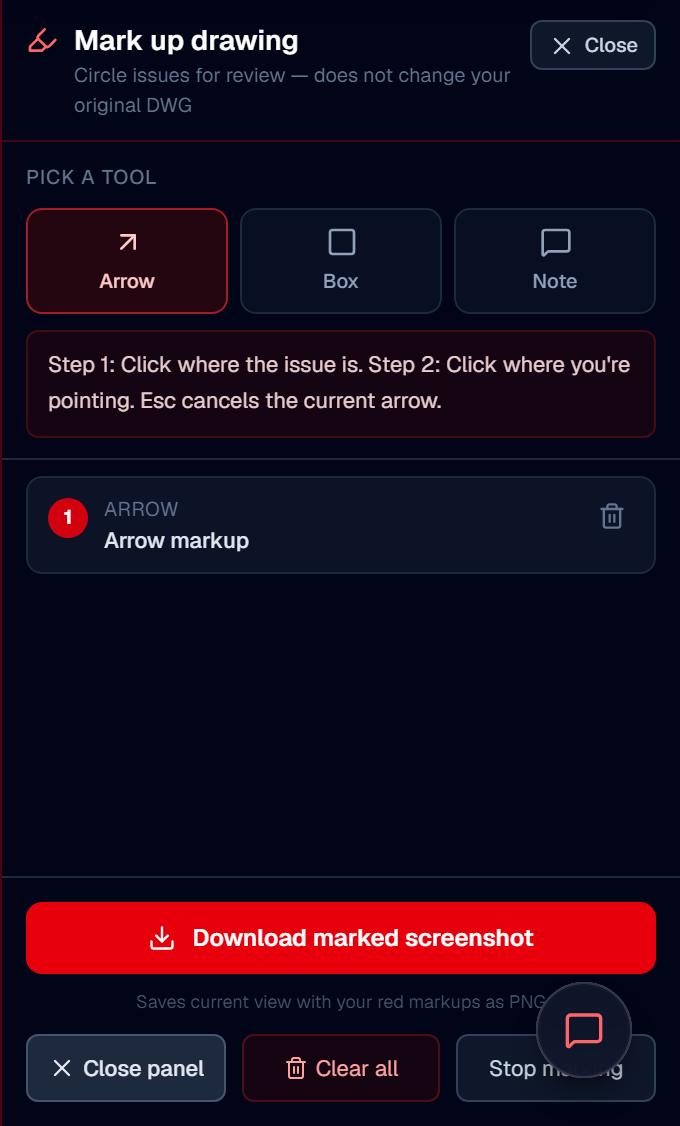
When your review is ready to send, click Download marked screenshot at the bottom of the markup panel. CadPeek captures the current view — pan, zoom, visible layers, and all red markups — as a PNG you can attach to email, Slack, Procore, or an RFI PDF.
This is the fastest Bluebeam-free deliverable for "see attached marked plan" workflows. The PNG is not a DWG; if the recipient needs native CAD, send the original file separately and your screenshot as the redline reference.
Markups are saved by filename (browser cache)
CadPeek stores markups in your browser's local storage keyed to the drawing filename. If you reopen the same file name later on the same computer and browser, your arrows and notes reappear. That is intentional for repeat reviews on iterative submittals.
Markups do not write back into the DWG. Clearing markups removes them from storage when you use Clear all in the panel. Opening a different file name starts a clean markup set.
Redline workflow for fire protection and MEP plans
Sprinkler and fire alarm contractors often receive combined background sheets with hundreds of layers. Toggle key layers only, zoom to the branch line in question, drop an arrow on the head or pipe fitting, and export PNG for the designer. Pair with CadPeek's measure tool if you also need to document center-to-center spacing in the same session.
For AHJ or owner review, a single marked screenshot plus a share link to the live drawing covers both async comment and interactive walkthrough — without mailing DWG attachments that half the team cannot open.
How this compares to Bluebeam and Autodesk Viewer
Bluebeam Revu remains the industry standard for PDF-centric construction markup. Autodesk Viewer handles many formats but targets general viewing. CadPeek focuses on native DWG/DXF in the browser with local parsing, layer control, text search, measure, share, and lightweight markup tuned for contractors who live in CAD attachments — not scanned PDFs.
If your entire team already standardizes on Bluebeam for PDF sets, keep using it for formal bid sets. Use CadPeek markup when the file is DWG, you need layers, and you want a free redline in Chrome without installing anything.
Long-tail tips from real review jobs
These habits match how teams describe "redline DWG online free" and "annotate CAD drawing browser" searches — practical, low-friction review without a desktop license.
- Search text labels before marking — find "SP" or device tags, then arrow the instance on sheet
- Hide empty layers to reduce noise on block-heavy Tianzheng or dense shop exports
- Name exported PNGs with sheet number and date: S-101_markup_2026-07-06.png
- For Upwork or email deliverables, include a one-line legend in the message body matching each arrow number
- Use Share when the reviewer needs to toggle layers; use PNG markup when you need a frozen record
Frequently asked questions
Do I need AutoCAD to redline a DWG? No. CadPeek parses and displays DWG/DXF in the browser. Markup is an overlay; it does not require AutoCAD or a Bluebeam subscription.
Can I edit the DWG with markup? No. Markup does not change layers, blocks, or geometry in the source file. Export DXF from other CadPeek tools if you need an exchange file.
Will markups show on someone else's computer? Only if they use the same browser profile and filename on the same machine. For collaboration, send the marked PNG or a share link.
Does markup work on DXF? Yes. The same Arrow, Box, and Note tools work on DXF shop drawings.
Start redlining now
Open Markup CAD Drawing Online, upload your sheet, click the highlighter, and place your first arrow. For measurement checks on the same visit, switch to the ruler tool. For client walkthroughs, use Share after your markup pass.
CadPeek is free for core viewing, layers, text search, markup, and measure — built for contractors and designers who need to open CAD files without AutoCAD, not for replacing full authoring software.
Article FAQ
Can I redline a DWG without AutoCAD or Bluebeam?
- Yes. CadPeek opens DWG/DXF in the browser and adds arrows, boxes, and notes as an overlay. Export a marked PNG for email or RFIs.
Does markup change my DWG file?
- No. Markups are a review layer stored in your browser by filename. The original drawing geometry is not edited.
How do I send markups to my engineer?
- Click Download marked screenshot for a PNG attachment, or use Share for a live view-only link with pan, zoom, and layers.
Will my markups appear on another computer?
- Markups are saved locally per browser and filename. For collaboration, export PNG or send a share link.
Is DWG markup free?
- Core viewing, layers, markup, and measure are free in CadPeek. No AutoCAD license or Bluebeam subscription is required.